Facebook Page Profile Picture Guide 2026: Safe Crop
Make a Facebook Page profile picture that survives the circle crop with a 640 px master, a safe center, and a practical upload check.

Contents
- The Page spec, without the muddle
- The native iPhone square crop
- The 640 px master and 512 px safe circle
- Face framing versus logo framing
- A real circle preview before upload
- The 36 px failure test
- Upload and recovery checks
- Questions people ask about Page profile images
- Should I upload 320 px or 640 px?
- Why does my square logo lose letters?
- Is PNG better for a Page logo?
Facebook Page profile pictures are circular, but the file you prepare is square. Facebook says a Page image displays at 176 × 176 pixels on computers, 196 × 196 on smartphones, and 36 × 36 on feature phones, while recommending a 320 × 320 px upload. Make a 640 px square, keep the important part inside its central circle, and judge the result at tiny size before uploading.
The Page spec, without the muddle
This is a Page guide, not a catch-all rule for every Facebook profile. The platform’s Page help says the image is circle-cropped and gives three display sizes: 176 px on desktop, 196 px on a smartphone, and 36 px on a feature phone. It also recommends 320 × 320 px for the uploaded image. That small-size spread is why a technically sharp logo can still read like a smudge.
| Page image moment | Official size or rule | Practical move |
|---|---|---|
| Desktop Page | 176 × 176 px | Check the mark at 176 px |
| Smartphone Page | 196 × 196 px | Keep the same centered crop |
| Feature phone | 36 × 36 px | Remove tiny lettering |
| Upload recommendation | 320 × 320 px | Build a 640 × 640 px master |
| Display shape | Circle | Protect the central circle |
The 640 px master is my recommendation, not a Facebook requirement. It gives you a clean 2× working file relative to the documented 320 px target, enough room to resize without treating the actual upload as your only master. Save it with a plain filename such as page-logo-640.png; the number tells the next person which file is safe to edit.
The native iPhone square crop
Start on the phone if the source is a headshot and you only need a square. In Photos, choose the photo, enter Edit, switch to the crop controls, release the ratio lock when needed, and choose Square. Apple’s iPhone crop instructions document the Square preset and the aspect-ratio lock. It’s the fastest route because the photo never has to leave the device.
The drawback is preview. Photos shows a square, while Facebook turns that square into a circle. A face usually survives. A wide wordmark, a mascot’s ears, or a product silhouette near a corner may not. Use the native crop when the subject is already centered and forgiving; don’t pretend it solves a circle-framing problem.
The 640 px master and 512 px safe circle
Prepare a 640 × 640 px square, then imagine a 512 px circle centered inside it. That circle is 80% of the canvas width, leaving 64 px on every side as sacrificial space. The arithmetic is the useful part: 640 × 0.8 = 512, and (640 − 512) ÷ 2 = 64. It gives a designer, a founder, and the person updating a Page from an iPhone the same instruction.
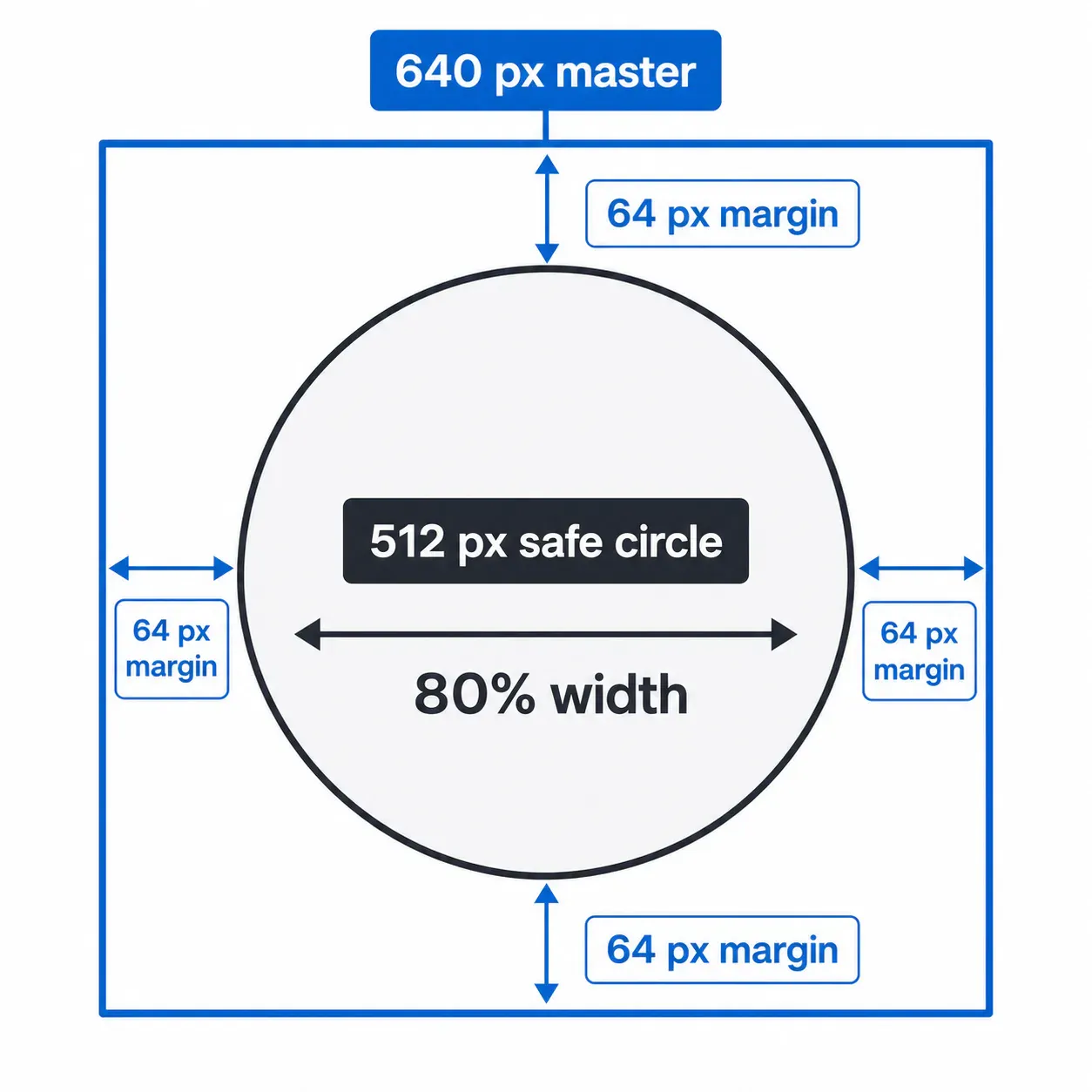
Treat the circle boundary as a no-go line for anything that must remain readable. For a face, that means eyes, the top of the hair, the chin, and the shoulders that give the head a stable silhouette. For a logo, it means the outer strokes and any letters that identify the business. Corners are whitespace, not storage.
I prefer this rule to the usual advice to “leave a little room.” A 64 px margin is measurable. It’s also the common failure point where a perfectly centered square logo looks balanced at 640 px but its thin outer ring disappears when it is seen at 36 px (the small preview is ruthless).
Face framing versus logo framing
A face wants a little asymmetry. Put the eyes slightly above the horizontal middle of the safe circle, then leave enough room below the chin that the crop does not look like a floating head. A logo wants stricter geometry: match the visual center, not always the bounding-box center. A heavy icon on the left can make mathematically centered lettering feel off-center (weight beats symmetry).
Facebook’s Page guidance specifically says PNG may give a better result for profile images with a logo or text. Use PNG for a flat mark, hard edges, or lettering. A camera headshot can be JPG, provided the source is clean and the face still reads at 36 px. This is a trade-off, not a format superstition: PNG preserves crisp graphic edges, while a photographic JPG usually needs fewer bytes.
If your source has dead sky, empty wall, or a shoulder occupying one corner, crop that out before you worry about the circle. The LinkedIn guide explains why a square canvas is not the same thing as a circle-safe composition. The same issue shows up in a Discord avatar, especially with logos that rely on an outer border.
A real circle preview before upload
When the square crop is not enough, use a circle preview. Circle Crop is the practical browser route: place the circular frame over the subject, move the image until the safe area has breathing room, then export the result. It is useful for Page logos because you can see the edge failure before Facebook makes the choice for you.
RoundCut’s circle tool has a limitation worth stating plainly: it cannot make an over-detailed logo legible at 36 px. If the mark contains a tagline, six thin spokes, and a tiny registered symbol, cropping is not the fix. Make a profile-specific version with the icon or initial only. Visual hierarchy wins here.
Need a clean square without changing the circular decision? Use the image resize tool after you have framed the master. Resizing first is backwards when the composition is the broken part.
The 36 px failure test
The official 36 × 36 px feature-phone display is a useful stress test even if your audience never uses one. It behaves like the tiny Page thumbnail that appears in crowded lists and notifications. Shrink a copy of your 640 px master to 36 px, then look for three things:
- Can you identify the person or mark without zooming?
- Does any important line touch the circular edge?
- Does the strongest contrast survive, or has it turned to gray mush?
If the answer to the first question is no, crop closer or simplify the mark. If the second answer is yes, pull the subject inward. If the contrast is gone, change the source or use a simpler version. Don’t sharpen a tiny logo into submission; it usually creates a crunchy halo rather than a clearer shape.
This check transfers well to other round avatars. A Slack avatar has the same small-context problem, while the Bluesky guide is useful when you’re maintaining one recognizable headshot across profiles. Keep one 640 px master and export per platform instead of repeatedly saving a thumbnail over the original.
Upload and recovery checks
Facebook’s own Page flow lets you select or upload a photo, add a frame when applicable, and follow the on-screen save instructions. Upload the 640 px file, then inspect the Page on a phone and desktop. Use a separate browser window or another device if you can; the editor view is not the same as a crowded feed.
If the crop looks wrong, go back to the master. Do not keep exporting smaller and smaller copies of the already-cropped file. That is how soft edges and broken kerning accumulate. Keep the source, the 640 px square, and the final upload as three separate files.
Questions people ask about Page profile images
Should I upload 320 px or 640 px?
Facebook recommends 320 × 320 px for a Page profile picture. Uploading a 640 × 640 px square is a sensible working choice because it is a 2× master of that documented recommendation; it does not change the platform’s display sizes. The useful safeguard is the circle-safe composition, not a race for giant dimensions.
Why does my square logo lose letters?
The Page image is shown as a circle, so square corners disappear. Move all required letters and border detail inside the central safe circle, or make a profile-only logo that drops secondary text. A square file can be valid and still be badly framed for a circular display.
Is PNG better for a Page logo?
Facebook says PNG may produce a better result when a Page profile picture includes a logo or text. Use it for crisp, flat artwork. For a photo, judge the small preview first; framing matters more than a format label.
For a face, the native square crop is often enough. For a logo or any image with edge-sensitive detail, make the circle decision in RoundCut’s crop workspace before you upload. The 36 px test gets the final vote.


